Recruiterflow [ATS] Juicebox integration Set-up
Last updated: January 20, 2026
About the Recruiterflow Integration
The Recruiterflow <> Juicebox integration is designed to seamlessly connect both systems in a two-way sync. About the Recruiterflow Integration:
You can use the integration for three use cases:
Import Project from ATS: You can import a job description from Recruiterflow into Juicebox to automatically kick off a search using the job description. This also includes linking your Juicebox project to an ATS job, which makes exporting profiles to your ATS easier. More details here.
Export Profiles to ATS: Save profiles directly into Recruiterflow, including contact details, current company and job, profile URLs, and more. On some plans, this can be customized further based on your preferred fields. Juicebox also has the ability to auto-export jobs to your ATS, including exporting all shortlisted profiles or exporting only interested profiles.
Import Candidates: View profiles already in Recruiterflow or within Juicebox. Avoid reaching out to the same profile twice, and instantly view your relationship history.
Please scroll down for additional details.
Start a Project via the Recruiterflow integration
Open the projects page and select “import Job from ATS / CRM”. You will then see your Recruiterflow jobs and can select the corresponding option.
2. Export Profiles to Recruiterflow
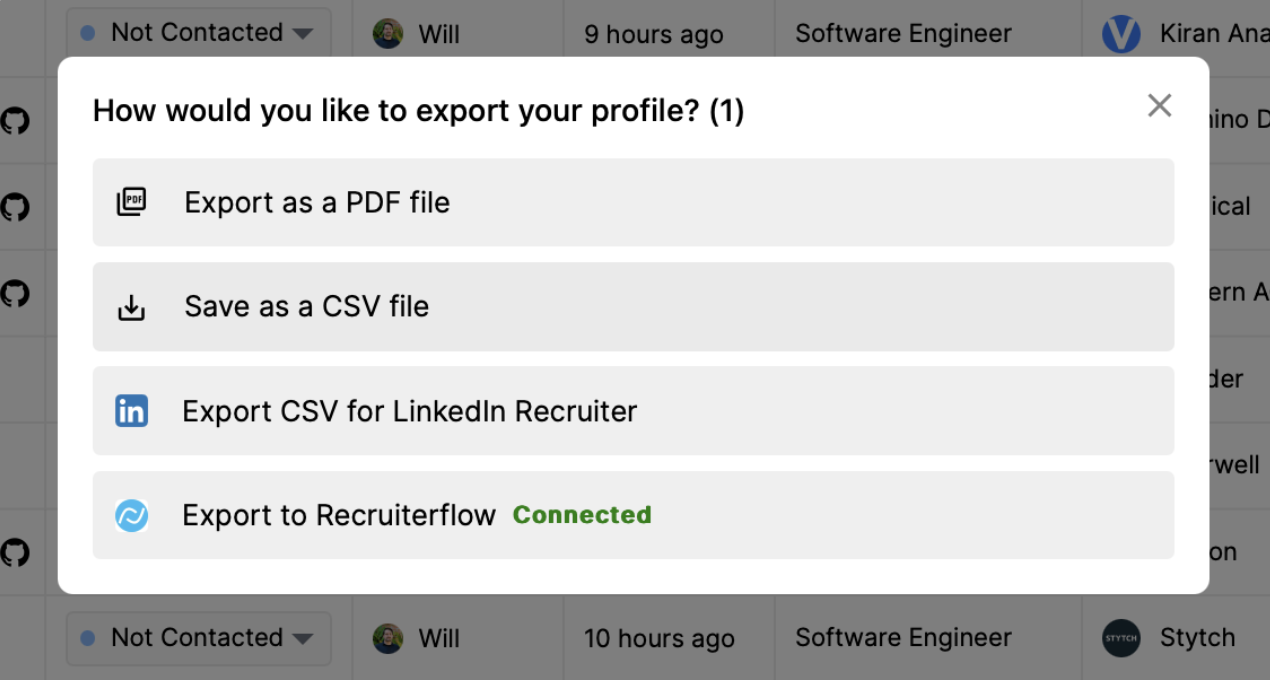
Follow the regular Export steps and select “Export to Recruiterflow” on either an individual profile or a bulk export. After exporting to Recruiterflow, you will see the profile be created in your Recruiterflow account under “Candidates”.
3. View Profiles already in Recruiterflow
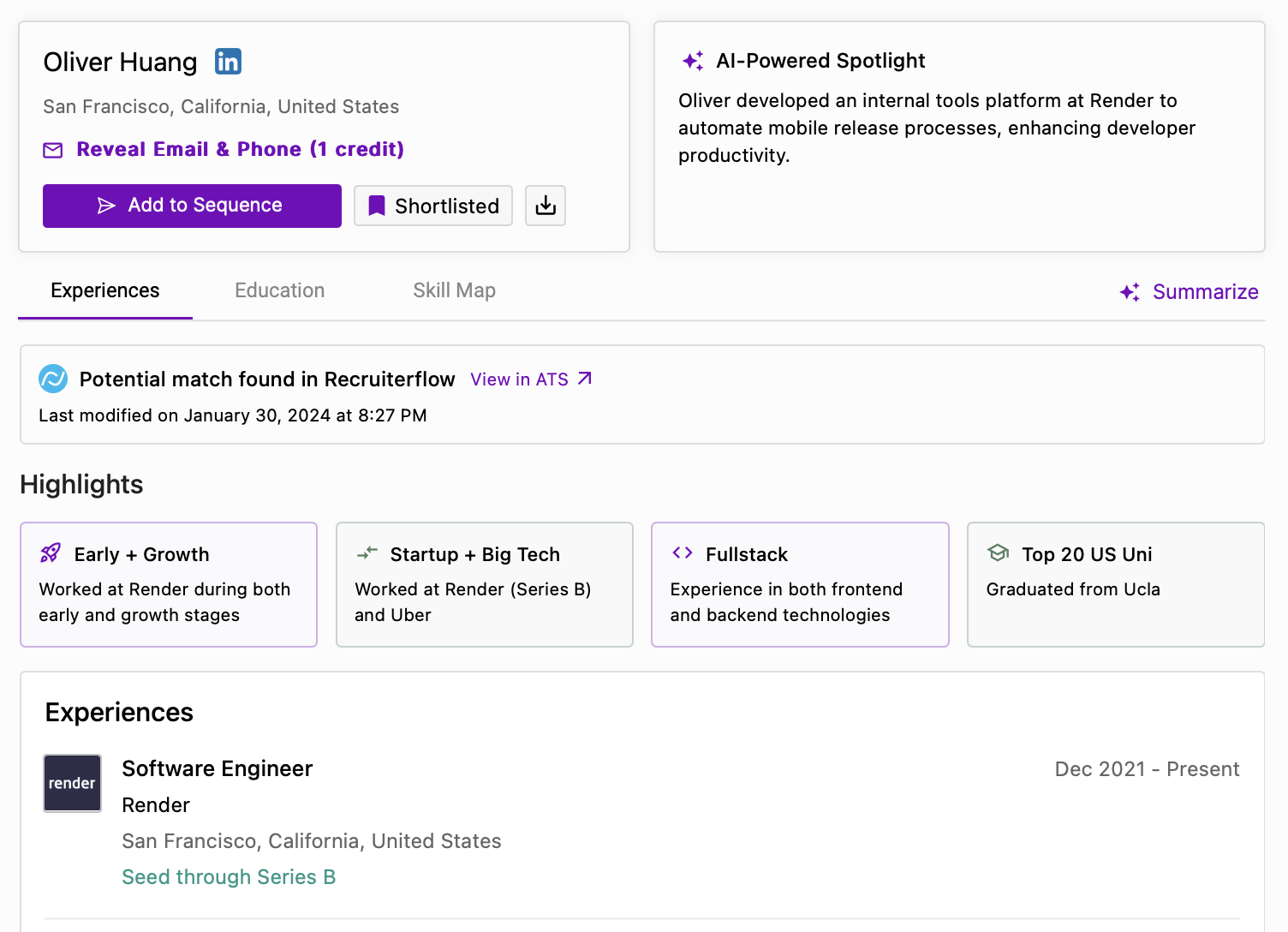
Juicebox will tag profiles that already exist in Recruiterflow. You will see the last modified date, as well as the option to view the profile directly in Recruiterflow by clicking the “View in ATS” button.
Setting up the Integration
First, navigate to the Integrations Tab on the Juicebox platform.

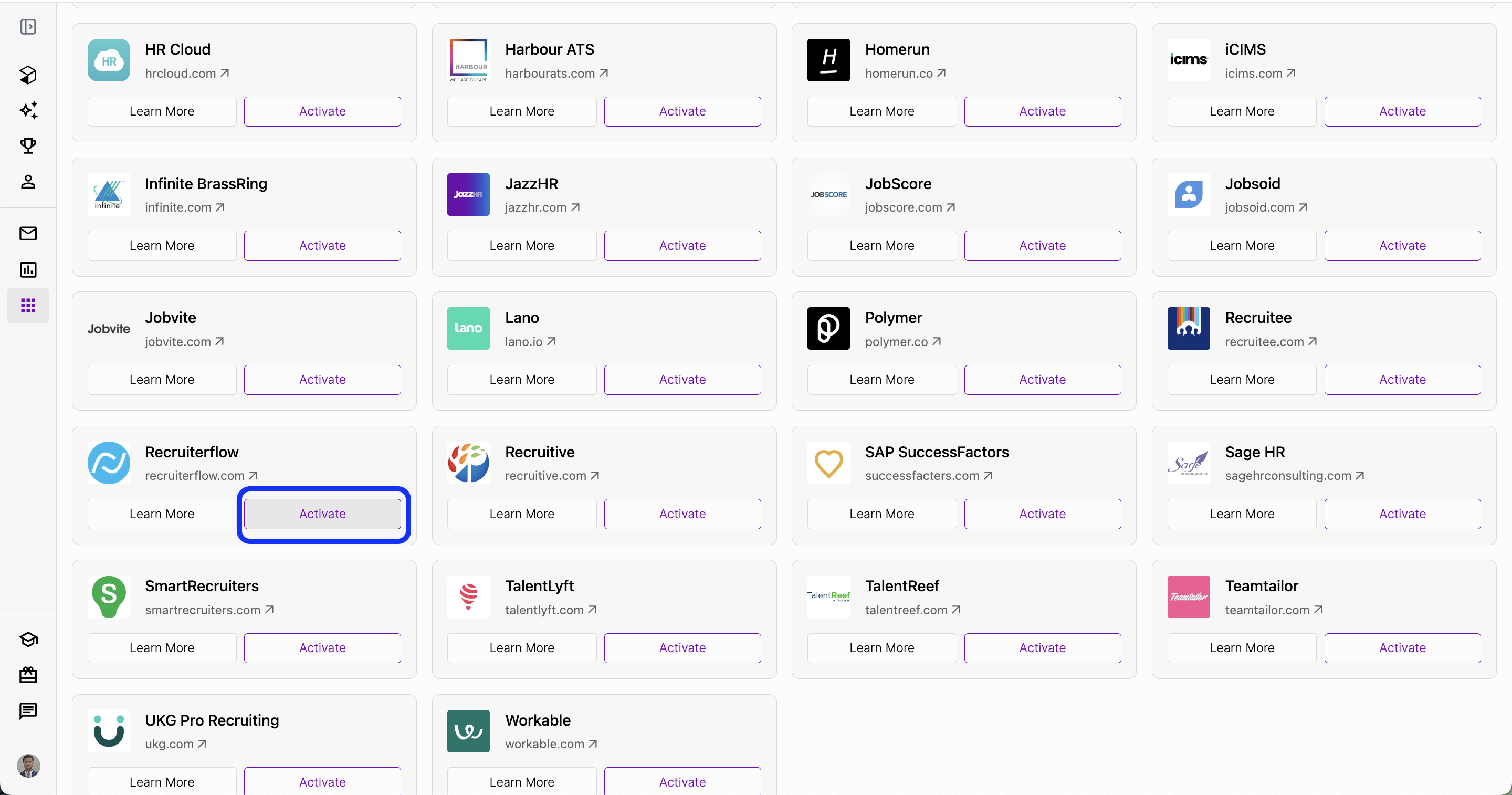
Then, select Recruiterflow and click “Activate”. You can also use the search bar at the top.
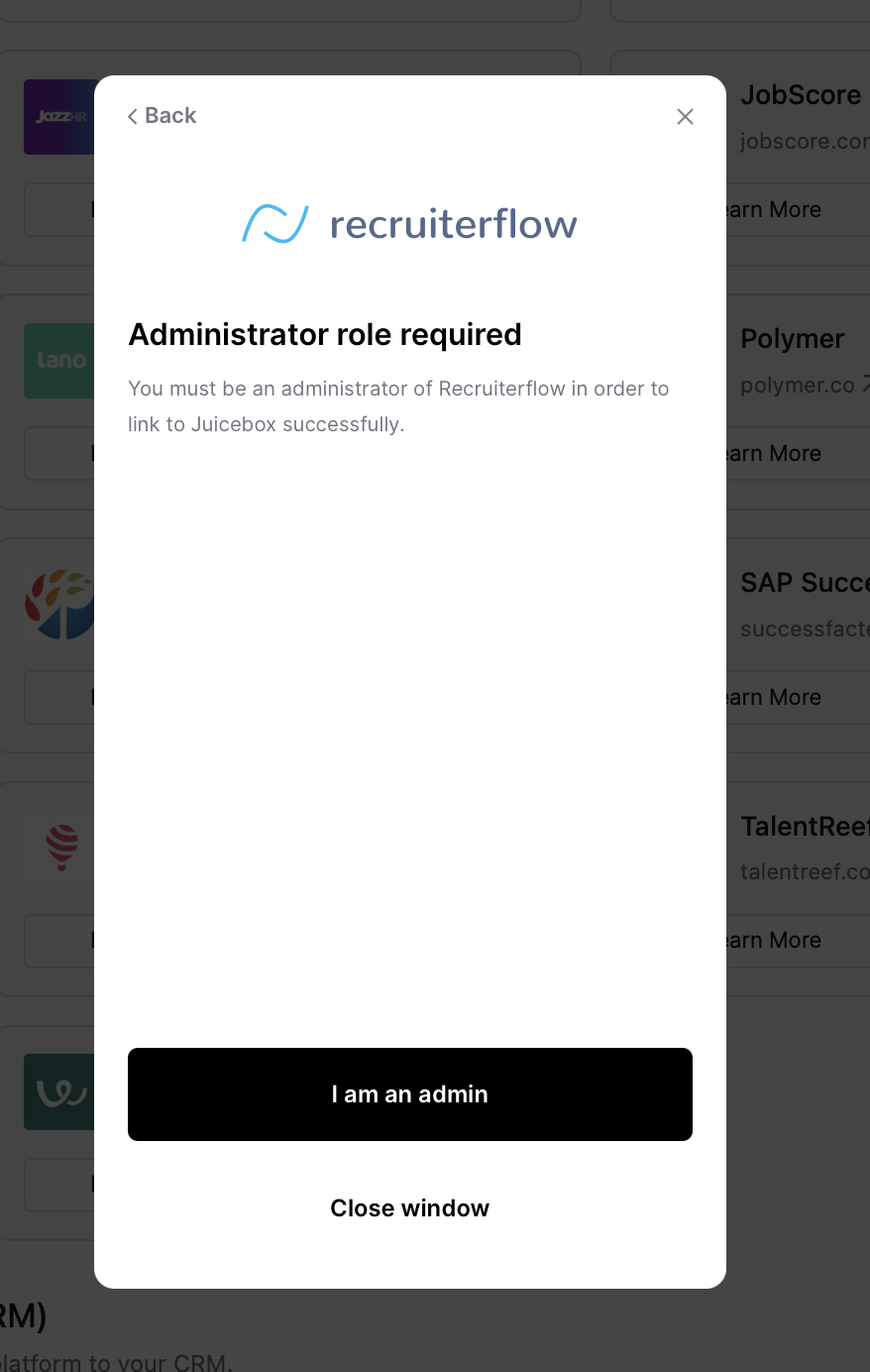
You will see a pop-up asking to activate your integration. Please note that one must be an administrator of Recruiterflow in order to link to Juicebox successfully.
After reviewing privacy information, you will be prompted to enter your API key and your secret key. To obtain these keys, please contact Recruiterflow support directly.
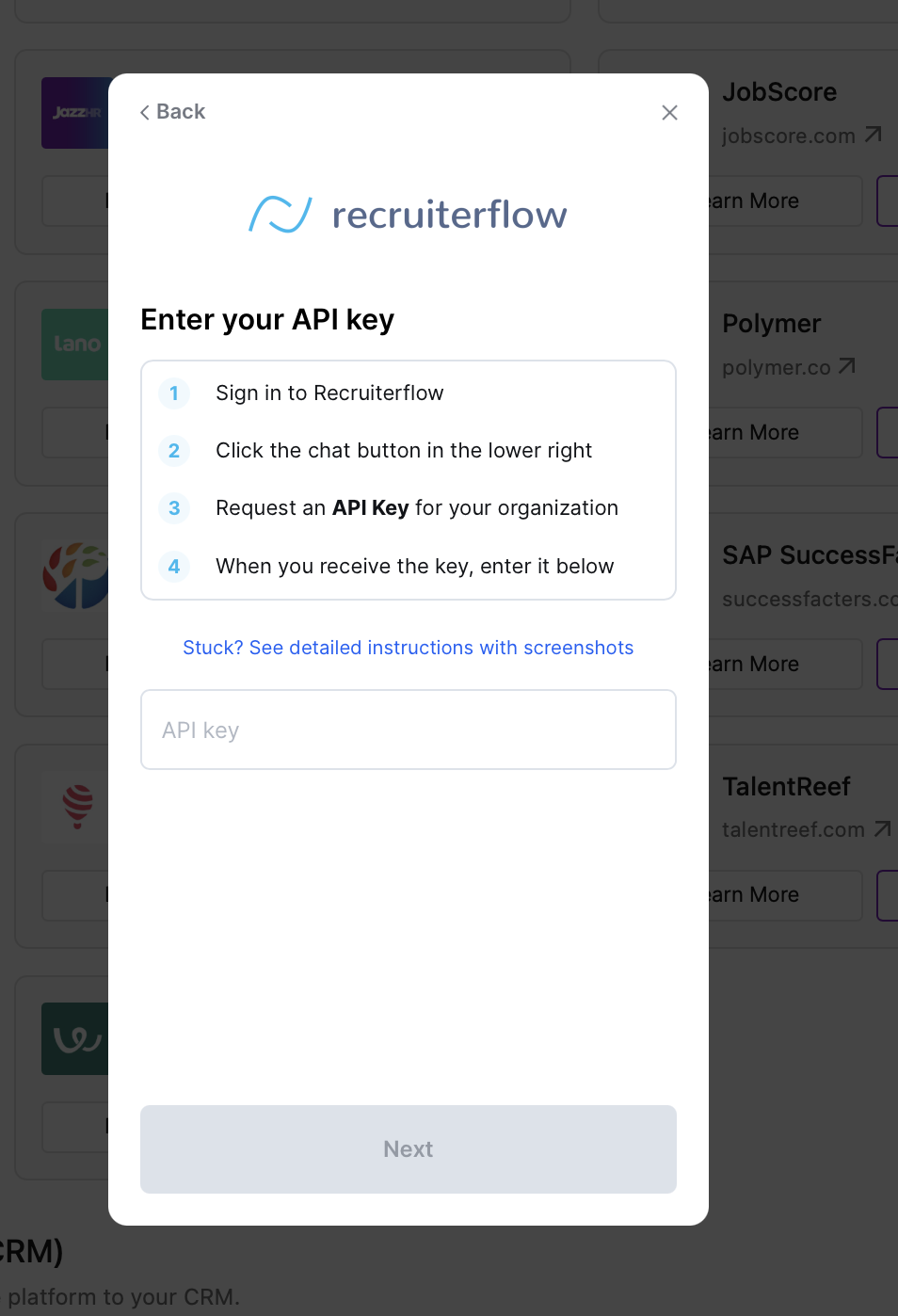
After entering your keys, the integration will be completed.
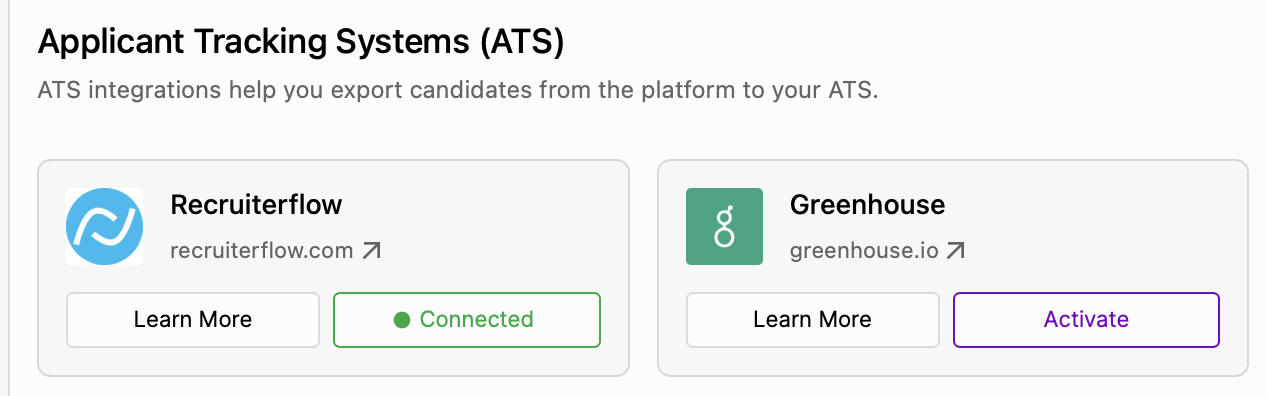
Congratulations! You have successfully integrated Recruiterflow and Juicebox. Please note that it may take up to 30 minutes for all data to sync between Juicebox and Recruiterflow.
Support
In case you are facing any issues with your integration, feel free to contact our support team by sending an email to support@juicebox.work